
Transitioning from Animate to Krita
Krita is a free raster animation software available on Windows and MacOS. It has a similar timeline to Animate and is a great alternative for hand drawn animation.
To get started, download and install Krita here: https://krita.org/en/download/
In order to export video and gifs from Krita, you’ll need to download ffmpeg.
Download ffmpeg
How to install ffmpeg: https://www.hostinger.com/tutorials/how-to-install-ffmpeg
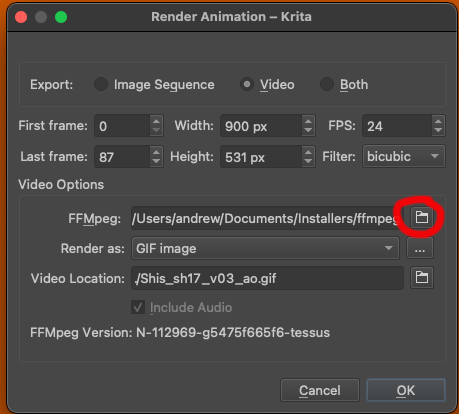
To link ffmpeg to Krita, click File > Render Animation > then link this icon to the ffmpeg file you unzipped and installed
Now you can export video and gifs!
Keyboard Shortcuts
I’ve created a keyboard shortcut file you can import into Krita that brings some Animate shortcuts in to help ease the transition.
Dropbox link to keyboard shortcuts file
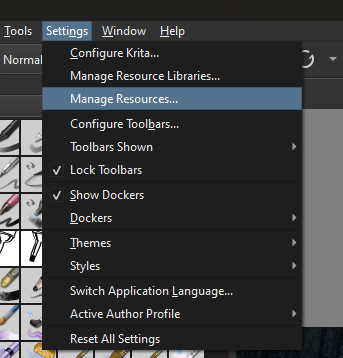
To install the shortcut file, head to Settings > Manage Resources…
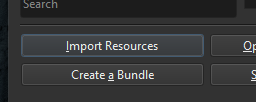
Then click Import Resources on the bottom right of the popup window
Custom shortcuts carried over from Animate/Flash
, - back one frame
. - forward one frame
9 - back one keyframe
0 - forward one keyframe
F5 - add frame
F6 - add keyframe
F7 - add blank keyframe
Krita shortcuts
TAB - fullscreen
⁃ - zoom out
+ - zoom in
4 - rotate left
5 - no rotation
6 - rotate right
Shift + CMD + A = deselect
Linework and Fill
A little tutorial I made for animators on a project I directed for Shiseido. Shows the workflow for drawing and filling animation using tagged layers. It is a bit of a clumsy tutorial but shows some of the cool features with the fill tool!